Introduction
On macOS, I got used to recognizing text directly after taking a screenshot, so I wanted the same feature on Ubuntu.
The workflow is roughly: screenshot -> save -> recognize -> copy to clipboard
After some searching, I found Tesseract, an open-source OCR engine that supports multiple languages and various image formats, meeting our needs.
System Information
- Ubuntu 22.10 Kinetic
Installation Process
# Install the tesseract-ocr recognition engine
sudo apt install tesseract-ocr -y
# Install tesseract-ocr Simplified Chinese language pack
sudo apt install tesseract-ocr-chi-sim -y
# Install xclip clipboard tool
sudo apt install xclip -y
# Install gnome-screenshot screenshot tool
sudo apt install gnome-screenshot -y
# Install imagemagick image processing tool
sudo apt install imagemagick -y
Create the Script
Create a file named ocr.sh in the ~/Documents/OCR directory and write the following content:
#!/bin/env bash

# Replace {Username} with your username
SCR="/home/{Username}/Documents/OCR/temp"

# Take a screenshot
gnome-screenshot -a -f $SCR.png

# Enhance recognition rate with image processing
mogrify -modulate 100,0 -resize 400% $SCR.png

# Use tesseract to recognize English and Simplified Chinese (eng+chi_sim)
tesseract $SCR.png $SCR &> /dev/null -l eng+chi_sim

# Copy the recognized text to the clipboard
cat $SCR.txt | xclip -selection clipboard

# Delete temporary files
rm $SCR.png $SCR.txt

exit
Add a Keyboard Shortcut
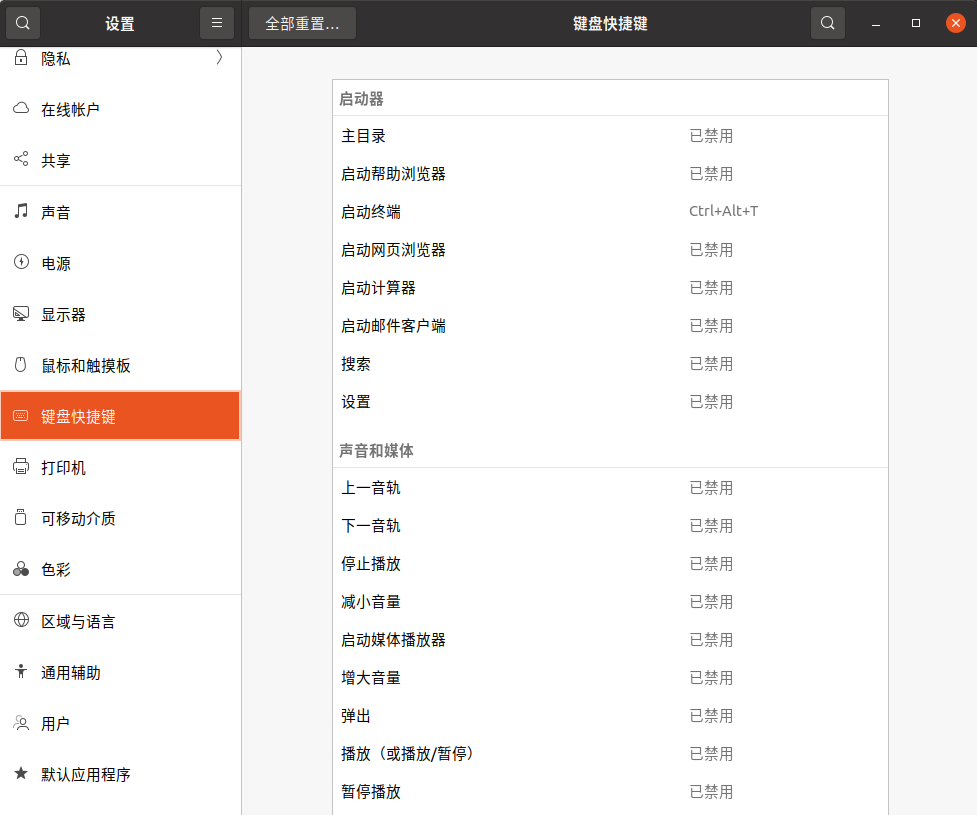
Add a shortcut in Settings -> Keyboard -> Shortcuts
Name: OCR
Command: bash /home/{Username}/Documents/OCR/ocr.sh
Shortcut: Ctrl + Print Screen
Test
Use Ctrl + Print Screen to take a screenshot, then use Ctrl + V to paste, and you'll see the recognized text.